
One Idea. One Cinematic Scene. One AI Video Maker.
Start from a line of text, a single image or a reference clip. Build it scene by scene with leading AI video models — every prompt, setting and result kept in one workspace.
AI Video Inspiration
Make an AI Video in Four Clear Steps
Move from an idea or source image to a finished clip without switching tools. Each model shows only the modes and settings it actually supports.
Add a prompt or image
Describe the shot you want, upload a starting image, or add reference media when the selected mode supports it.
Choose a model and mode
Select Veo, Kling, Seedance, Hailuo or another available model, then choose text-to-video, image-to-video or a supported reference mode.
Set the shot options
Adjust the duration, aspect ratio, resolution, audio and other controls exposed by that model.
Generate, review and download
Create the clip, review it in generation history, try another model when needed and download the finished result.
Text to Video, Image to Video and More in One AI Video Generator
Start with a prompt, a still image or reference media, then compare leading AI video models in one workspace. Kuca shows the real modes and controls supported by each model so you can choose the right production path for every shot.
Text to Cinematic Video
Describe the subject, action, lighting and camera move. Kuca turns the written direction into a complete AI video shot instead of leaving you with a static frame.

Image to Video
Upload one still and animate it while preserving the composition and visual mood. It is the shortest path from a product image, concept frame or character portrait to motion.

Camera and Motion Direction
Guide pans, tracking shots, push-ins and subject movement through the prompt and the controls exposed by the selected model.

Consistent Subjects
Use first frames, last frames and supported reference modes to keep the same subject recognizable as the shot, setting and light change.

Scene and Style Control
Shape weather, lighting, color and production design so the generated video follows your visual direction rather than inventing a new one.

Sound, Dialogue and Atmosphere
Choose an audio-capable model when the shot needs dialogue, sound effects or ambience generated alongside the picture.

One AI Video Maker for YouTube, TikTok, Ecommerce and More
Kuca is the AI video maker built for creators and teams who need a repeatable production workflow, not another single-model demo.
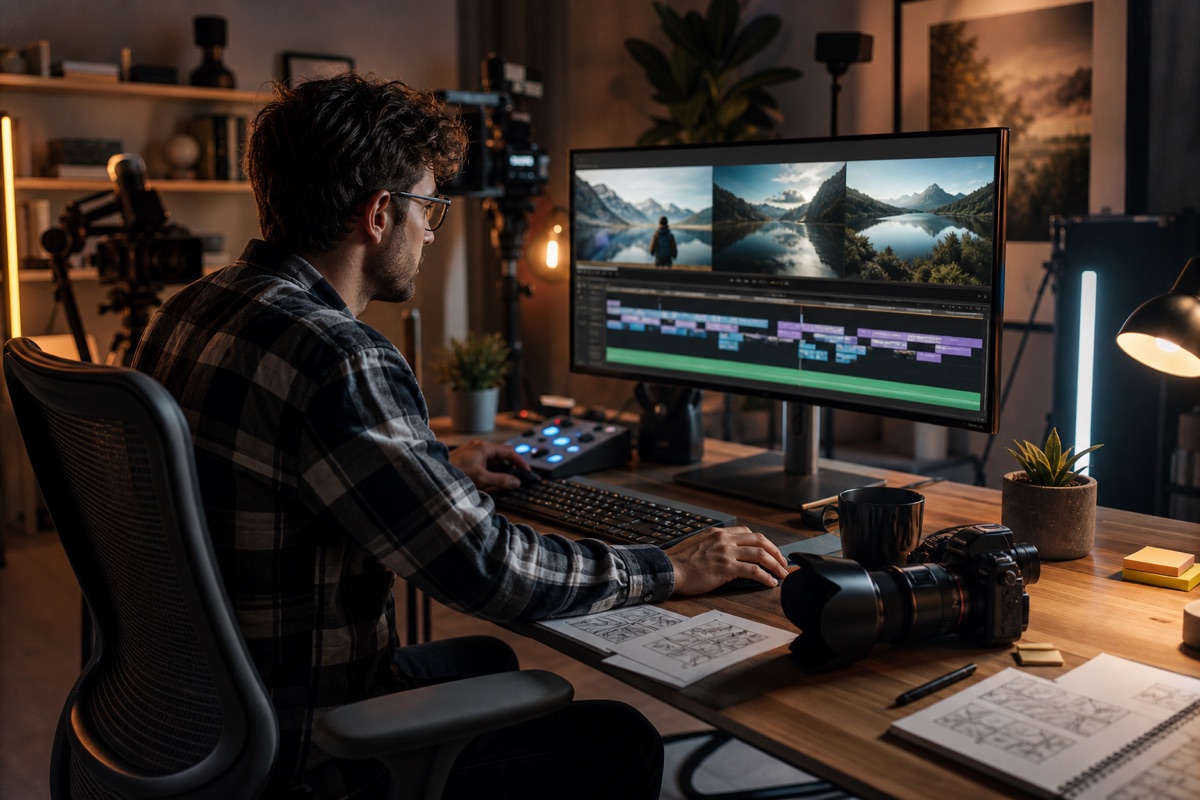
YouTube Creators
Turn scripts into B-roll, intros and complete scenes with an AI video maker that keeps successful prompts reusable across a series.
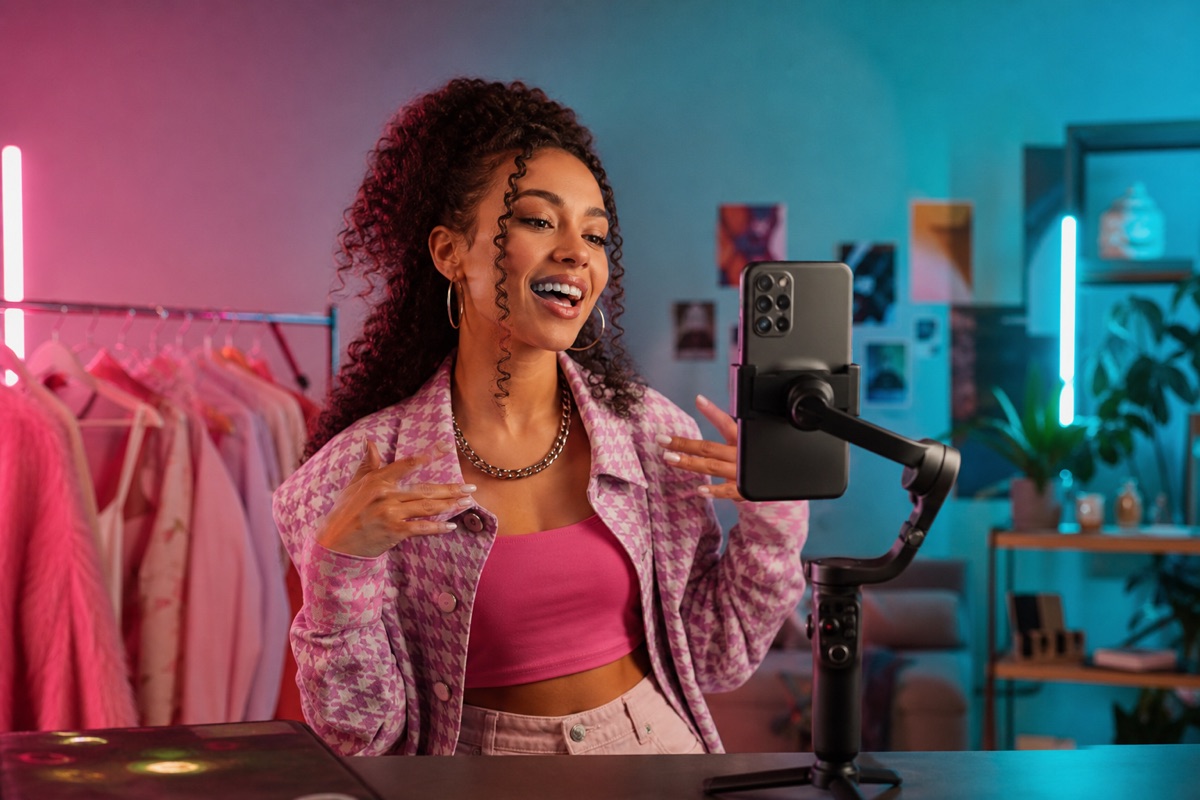
TikTok & Reels
Create vertical-first shorts, keep a recognizable subject across shots and load reusable setups from the inspiration gallery into your workspace.
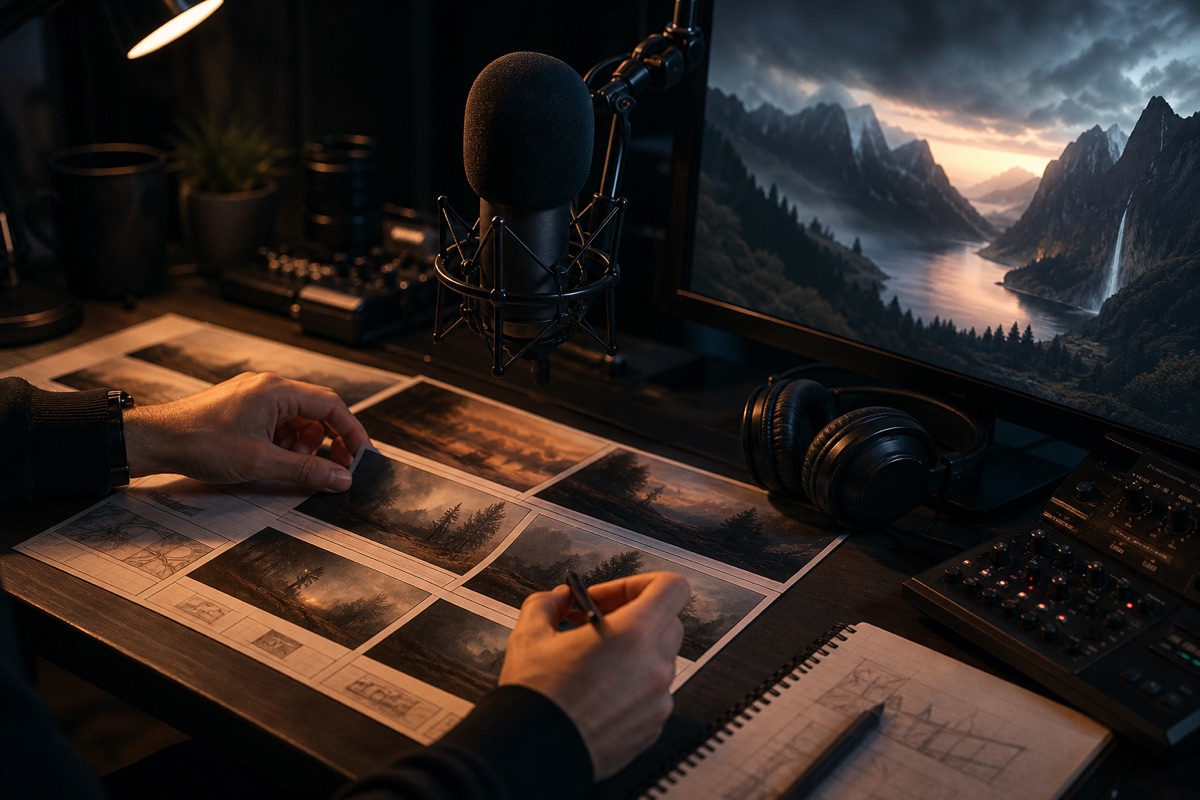
Faceless Channels
Build visual stories from prompts, reference frames and generated scenes without appearing on camera or organizing a traditional shoot.
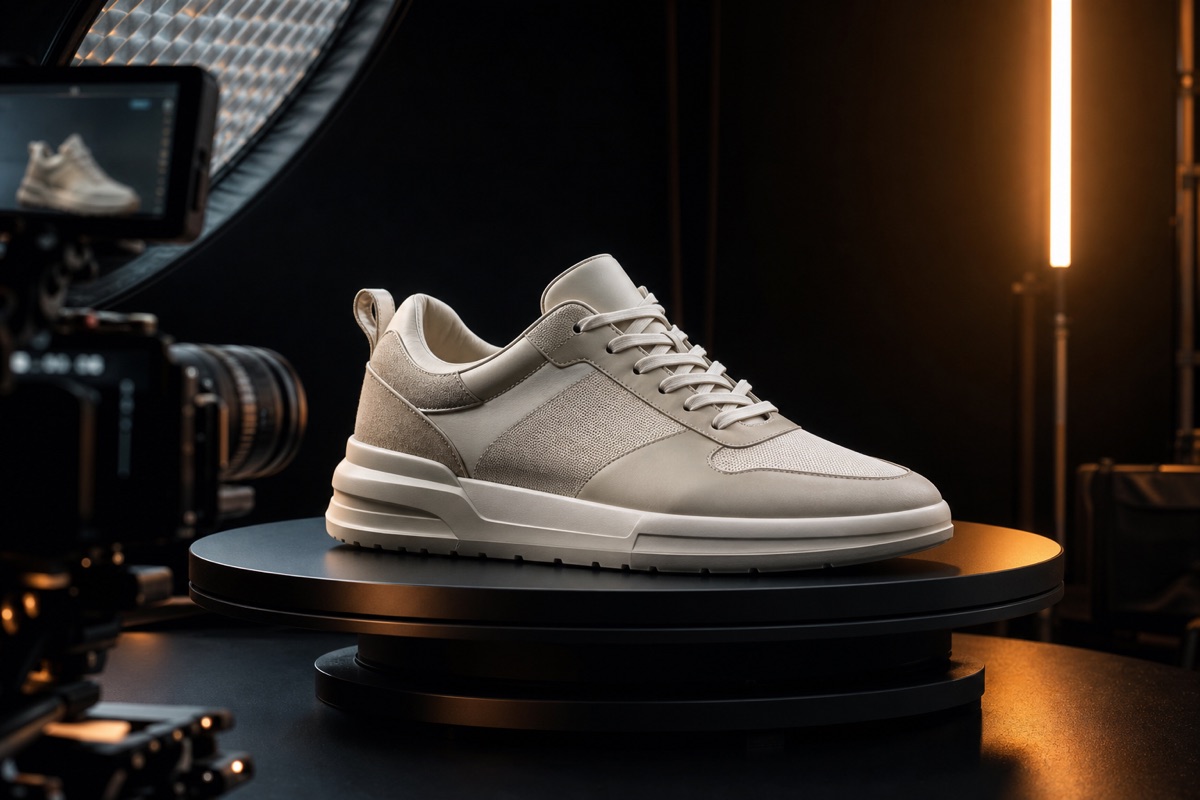
Ecommerce & Dropshipping
Turn one product image into motion-led showcases while preserving the product shape, materials and visual identity across alternate concepts.
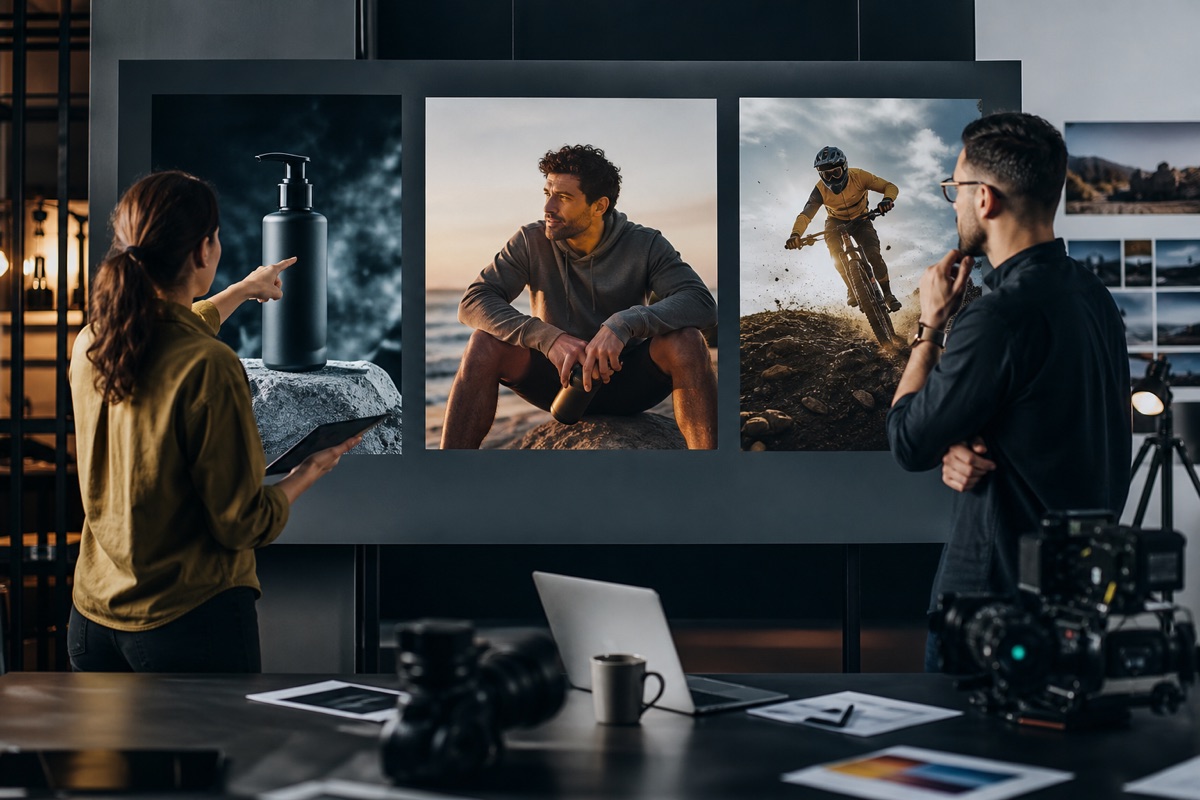
Performance Marketers
Explore multiple hooks, camera treatments and visual directions for social ads before carrying the strongest concept into production.
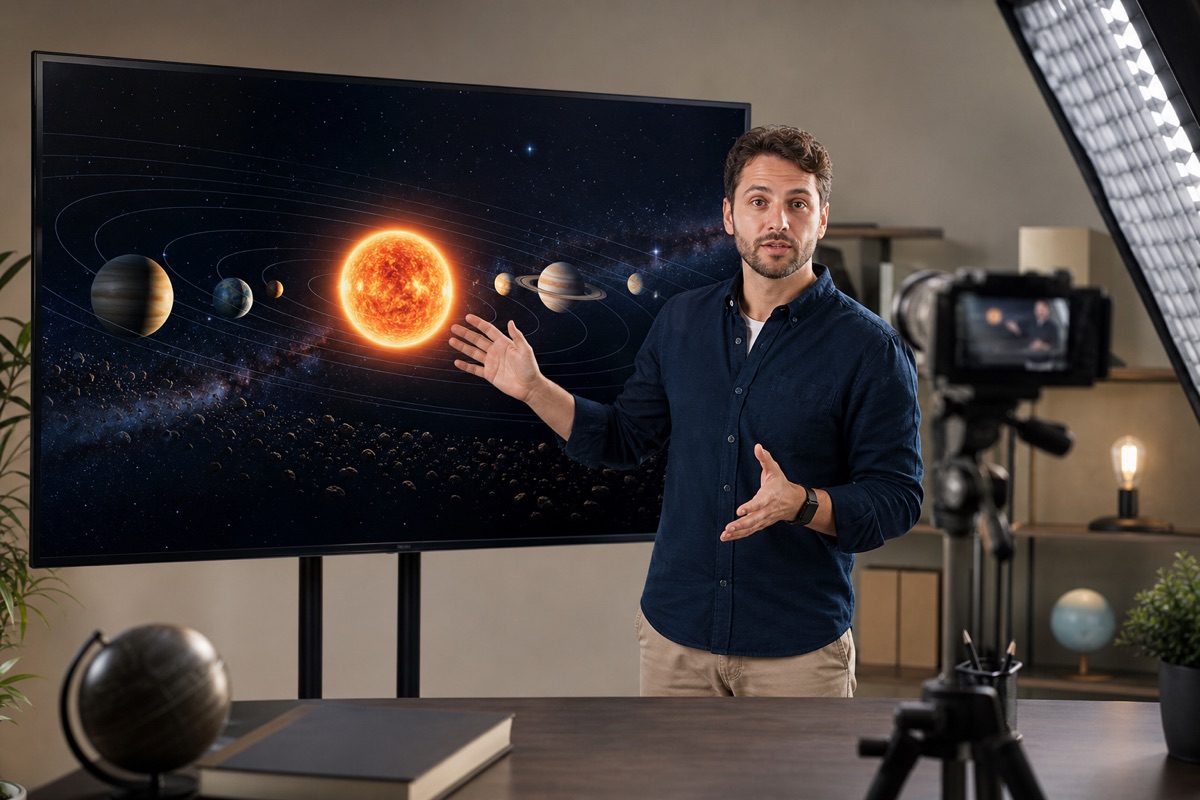
Education & Courses
Transform lesson scripts into visual explanations, demonstrations and story-led learning clips with reusable prompts and references.
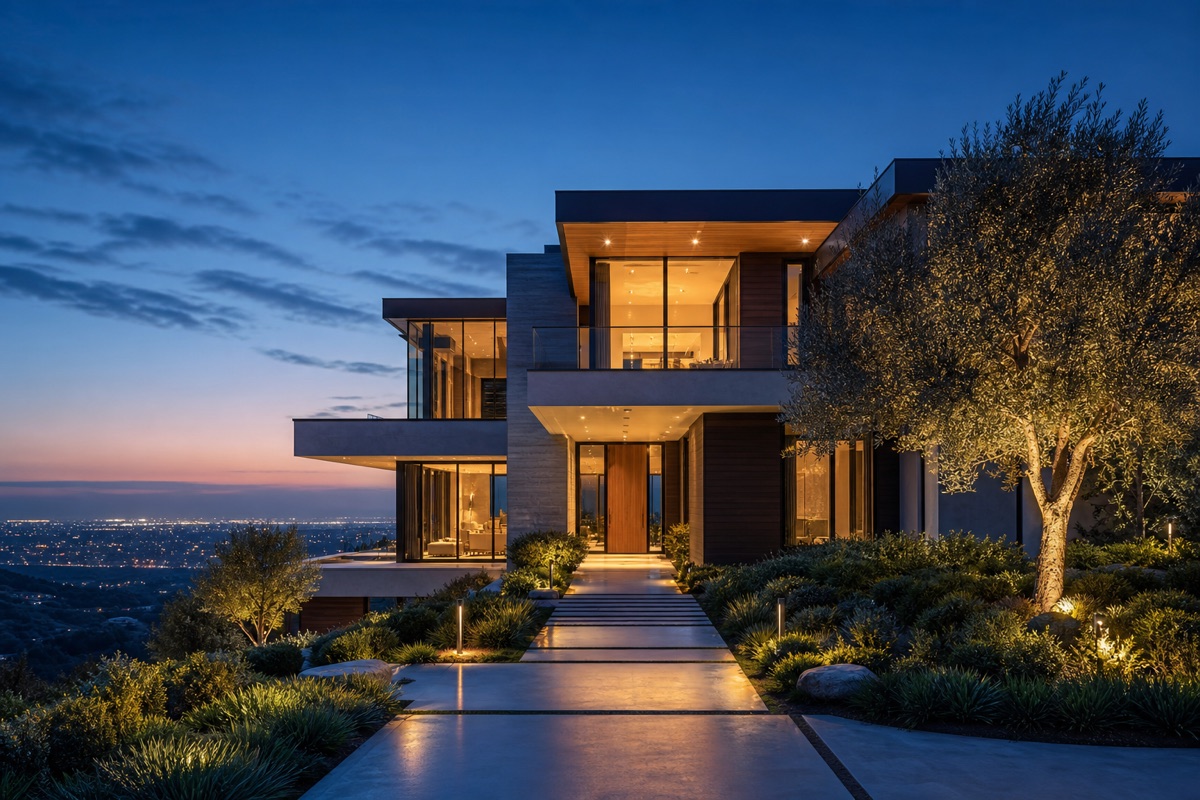
Real Estate
Animate property images, architectural concepts and environment renders with controlled camera movement for more immersive presentations.

Agencies & Freelancers
Move between client styles and shot requirements in one workspace while keeping prompts, references and finished generations organized.

Kuca Studio
An AI Video Studio, Not Just a Model List
Kuca keeps prompts, model controls, reference inputs, generation status and finished results in one focused AI filmmaking workflow. Refine shots across different models and reuse successful setups from generation history.
- Choose the right AI model and generation mode for each shot
- Keep prompts and reference inputs attached to the result
- Track progress, revisit history and download finished work
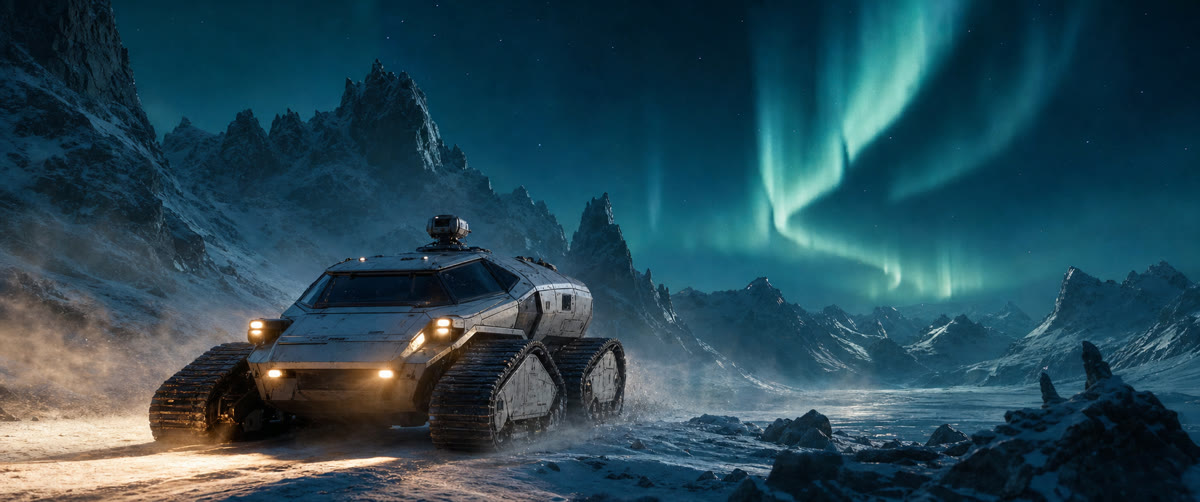
A research rover crosses a frozen alien valley beneath a teal aurora. Track low beside the vehicle as amber lights cut through drifting snow.
 Establishing
 Tracking
 Cockpit
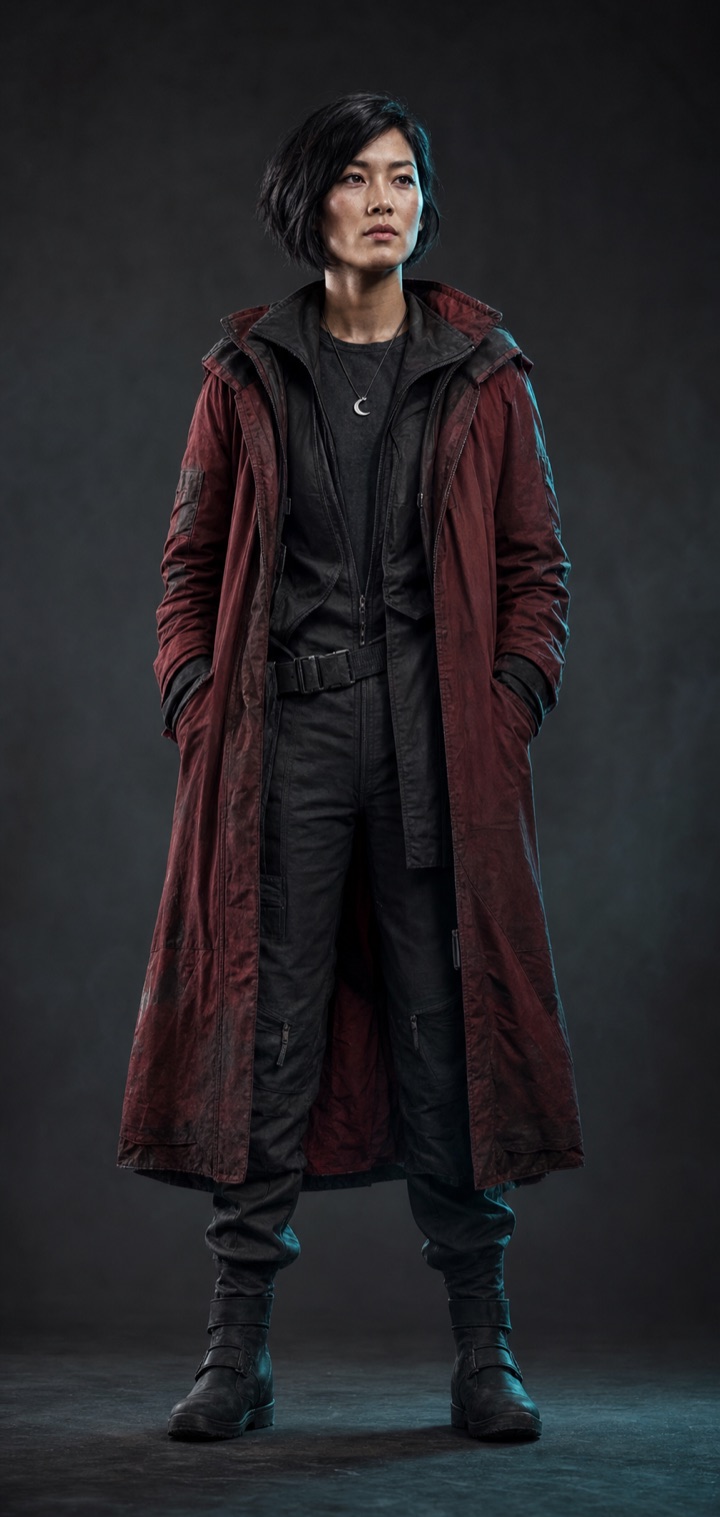
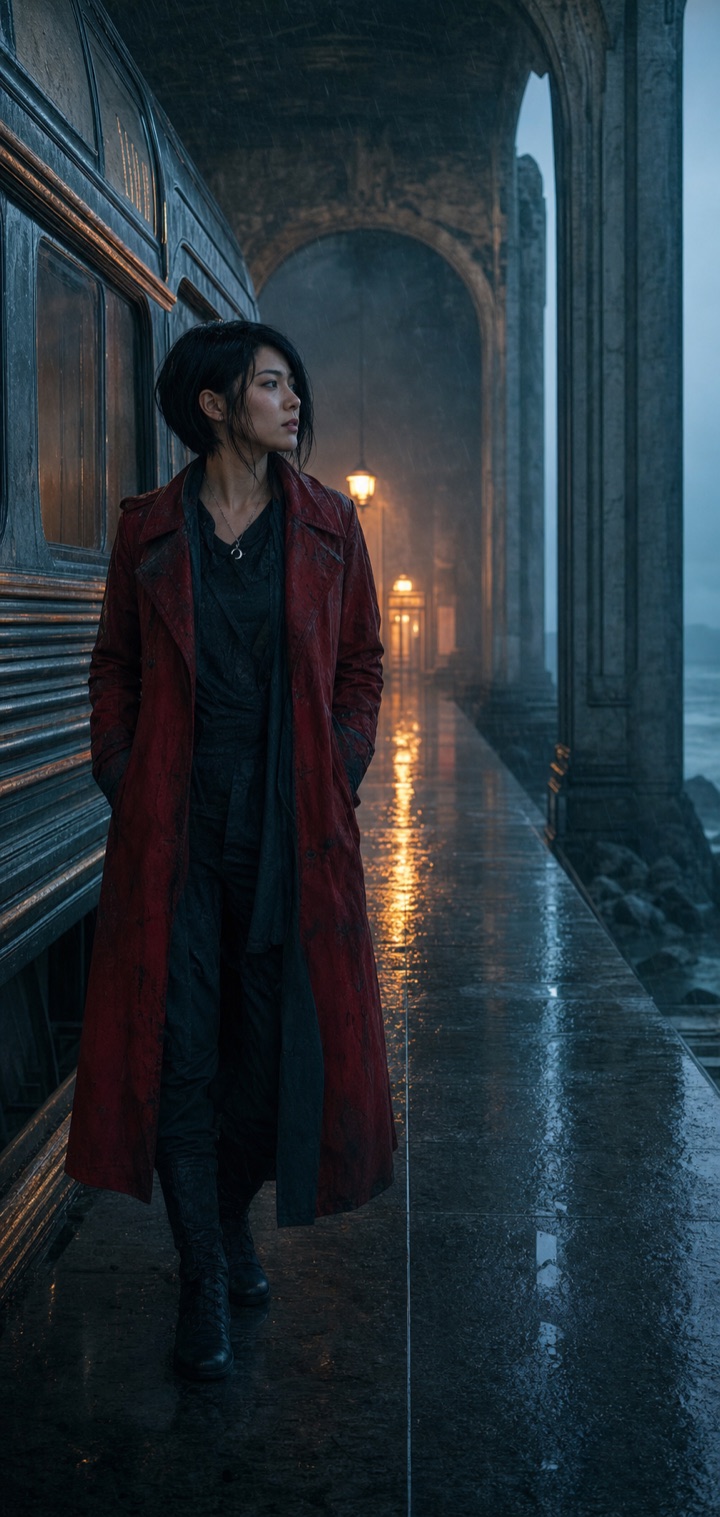
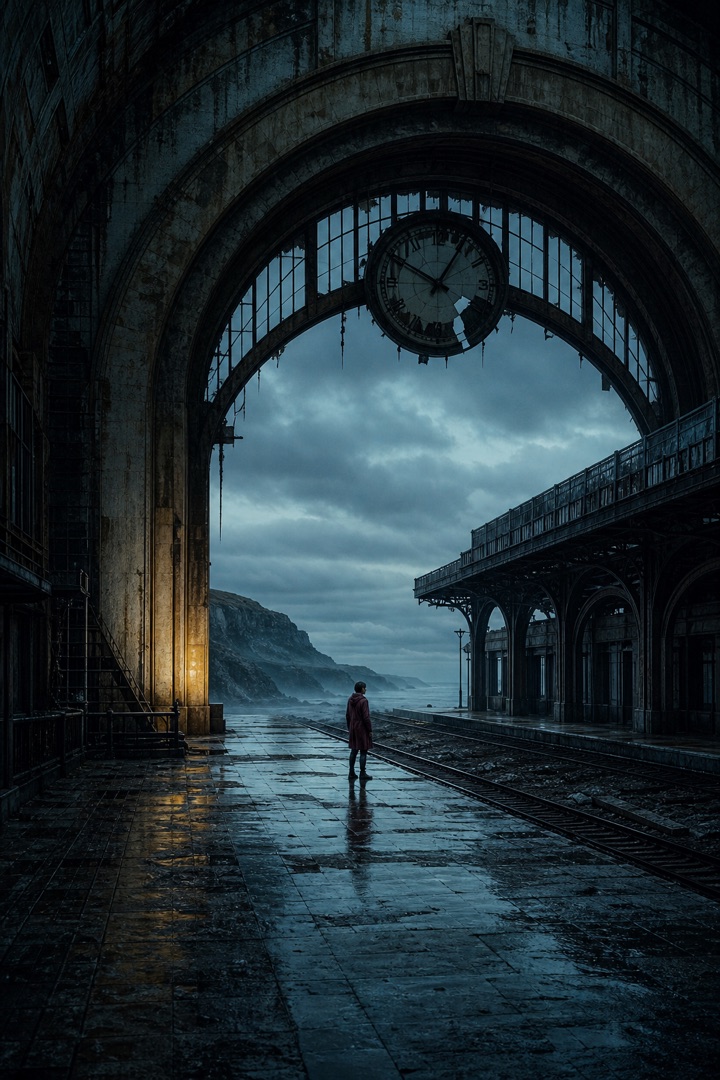
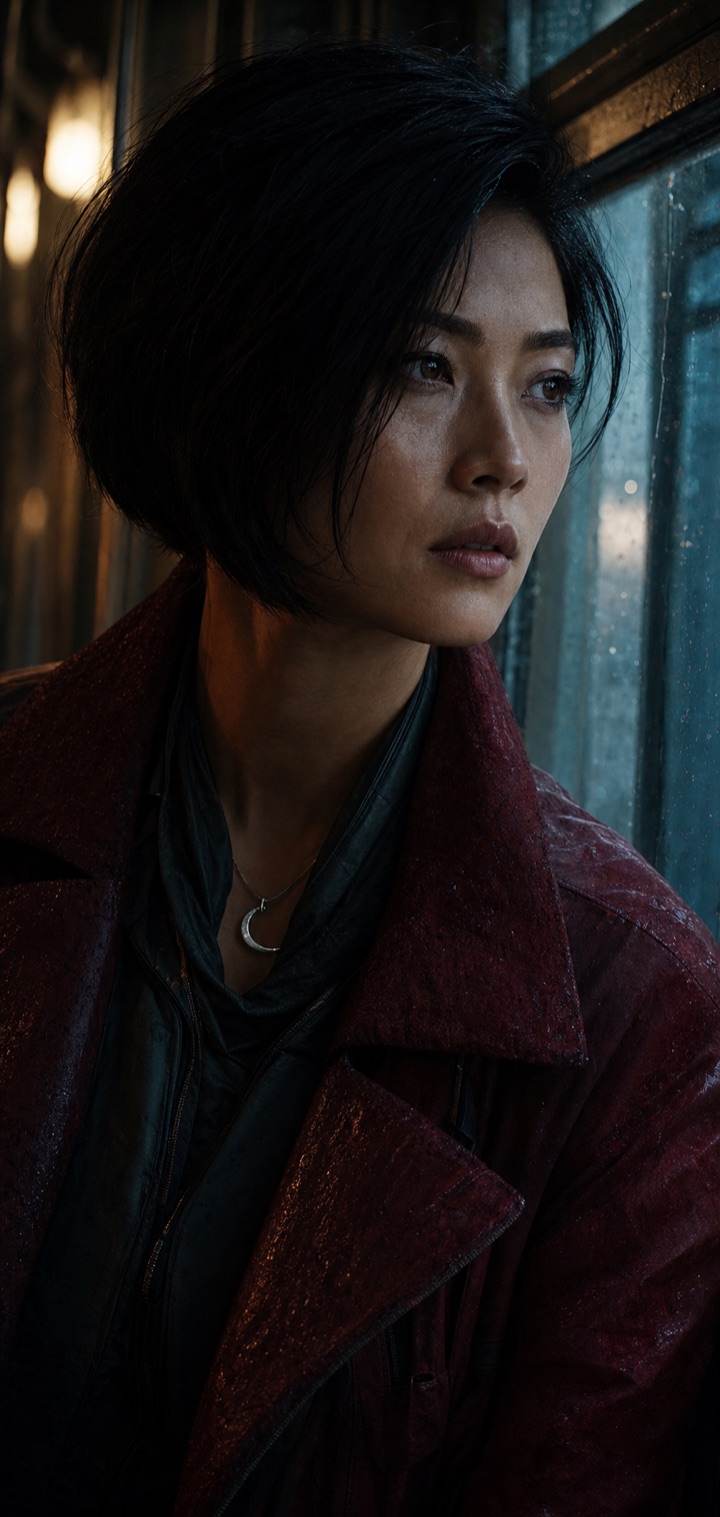
Cinematic Visual Development
Build Cinematic Frames Before Motion
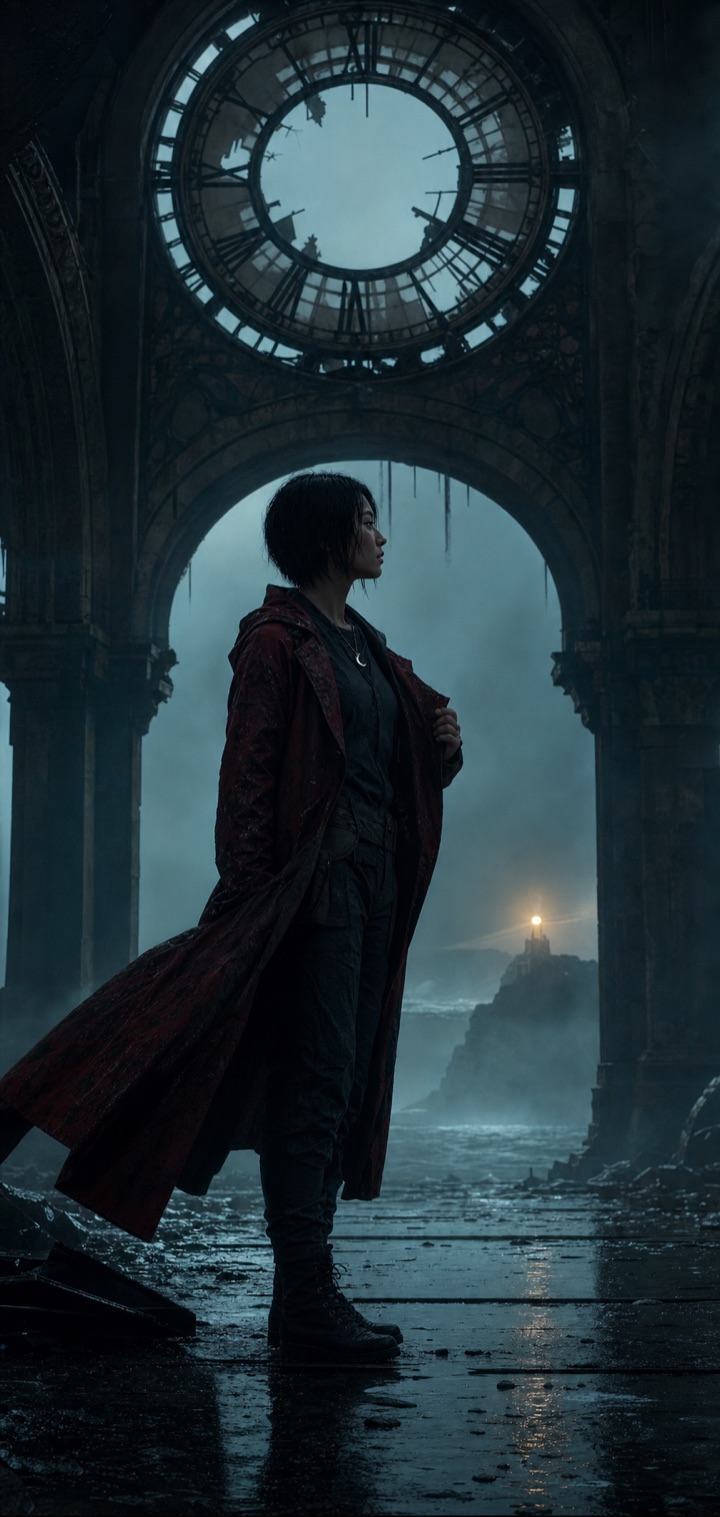
Film-quality AI video starts before motion. Use Kuca's image workspace to define a character, explore the world and lock a hero frame, then carry that visual direction into image to video.
- Explore establishing shots, tracking frames and close-ups
- Keep character, wardrobe and visual tone consistent
- Move approved frames directly into image to video

From Still Image to Motion
Turn a Product Image Into a Cinematic Video
Take a finished product frame into image to video, describe the motion and camera treatment, and render a complete clip. This real Kuca case turns one helmet image into an eight-second rotating studio shot while preserving its carbon-black finish, visor design and warm amber lighting.
- Animate a product image without rebuilding the scene
- Describe camera movement, light and effects in plain language
- Create alternate cuts by changing the prompt or video model
Choose the Best AI Video Model for Every Shot
Kuca's AI video maker lets you compare each AI video generator by the differences that matter: supported modes, starting credits, duration, resolution, audio and reference control.


Seedance 2.0 for deeper reference control
One model family covers text, first frame, first and last frame, and multimodal references for complex shots that need consistent subjects, motion, and camera direction.
The broadest reference control
Use first frame, first and last frames, or multimodal references when text or a single image is not enough.
Up to 4K output
The Standard model exposes resolutions from 480p through 4K for different production needs.
Audio generation
Generate video and audio together when the selected parameters support sound.
Standard, Fast, and Mini
Choose higher fidelity, faster iteration, or lighter-weight exploration without changing workflows.
Veo 3.1 with a lower-cost way to start
Veo 3.1 Lite starts at 24 credits while retaining text, frame control, multimodal references, audio, and up to 4K output. Move to Fast or Quality only when you need more.
Lite from 24 credits
A lower entry point for Veo 3.1 that works well for frequent ideation and everyday generation.
Up to 4K output
All three Kuca Veo 3.1 variants expose 720p, 1080p, and 4K resolution options.
Audio generation
Create audiovisual results from prompts and supported reference inputs in one generation flow.
Frame-guided workflows
Start from an image or control the opening and closing frames for more directed motion.
Kling 3.0 for longer, controlled shots
Generate up to 15 seconds in one shot and define both the opening and closing frames for narrative beats, product motion, and directed transitions.
Up to 15 seconds per shot
A better fit for complete actions, product demonstrations, and paced narrative shots than short clips.
Up to 4K output
Kling 3.0 Video provides 720p, 1080p, and 4K output choices.
First and last frames
Define both ends of a shot to guide scene transitions and maintain stronger visual continuity.
Audio generation
The Kling 3.0 Video workflow supports video generation with sound controls.
Wan 2.7 from generation through editing
Create from text, images, or references and keep working with a dedicated video editor in the same family—ideal for iterating on existing material.
Generation and editing covered
Create from text, images, and references, then continue directly from an existing source video.
Up to 1080p
Wan 2.7 workflows support 720p and 1080p outputs depending on the selected mode.
Reference-to-video
Guide a video with image or video references when visual consistency matters.
Video editing workflow
A dedicated Wan 2.7 Video Edit option handles transformations from an existing source video.
Grok Imagine for the lowest-cost exploration
Start from just 2 credits and generate up to 30 seconds, making it a strong option for testing many prompts, image animations, and reference directions.
From 2 credits
The lowest starting cost in this comparison, ideal for validating ideas before a higher-fidelity pass.
Up to 30 seconds
Dedicated text and image variants expose durations up to 30 seconds.
Reference workflows
Use reference generation when the result needs to follow supplied visual material.
720p output
Current Grok Imagine video variants are presented with 720p output in the Kuca workspace.
Hailuo for affordable image animation
Hailuo 02 starts from 10 credits, while Hailuo 2.3 focuses on first-frame animation with Standard and Pro options for quality upgrades.
From 10 credits
Start with low-cost text or image generation, then move to Pro and 1080p when the shot needs it.
Standard and Pro tiers
Select the tier that fits faster exploration or higher-quality image animation.
Up to 1080p
Available Hailuo Pro and 2.3 workflows expose resolution options up to 1080p.
Image-first motion
Hailuo 2.3 is purpose-built around animating a supplied first frame.
AI Video Maker FAQs
Everything you need to know about creating films, short dramas, social videos and commercial content with Kuca's multi-model AI video maker.
Kuca is a unified workspace for creating professional AI videos with multiple leading models. You can move from a prompt or reference image to generation, review and reuse without managing separate subscriptions and disconnected tools.
Kuca is built for cinematic scenes, short dramas, social videos, ads, product films, music visuals and previsualization. Start from text, images or supported reference media, then compare models and reuse the strongest setup for the next shot.
Kuca brings together Seedance, Veo, Kling, Wan, Grok Imagine, Hailuo, Runway, HappyHorse and Gemini Omni workflows. Each model keeps its real supported inputs and controls, so you can choose speed, motion quality, visual detail, reference support or native audio based on the shot you need.
Yes. Kuca supports text-to-video, image-to-video and model-specific reference workflows. Depending on the selected model, you may be able to provide a first frame, last frame, multiple reference images or a reference video; Kuca only shows controls the current workflow actually supports.
Audio capability depends on the model. When a selected workflow supports native audio, Kuca can pass the relevant prompt and audio settings for dialogue, effects or ambience; models without audio support do not show an unavailable audio control.
Start with the result you care about most: fast iteration, realistic motion, cinematic detail, reference consistency or synchronized audio. You can run the same creative direction through different supported models, review the results in one history panel and continue with the version that best fits the project.
Generation time varies by model, duration, resolution, enabled features and provider demand. Kuca keeps the task in generation history while it is queued or running, so you can continue working and return when the result is ready.
Each generation uses credits based on the selected model and active settings, with the required amount shown before submission. Accounts that have not completed a payment must generate publicly and receive watermarked downloads. Any successful paid plan or one-time credit purchase unlocks private, watermark-free generation.
Kuca is designed for creators, filmmakers, marketing teams and businesses producing professional content. Usage rights can vary by model provider, source material and account plan, so review the applicable model and platform terms before publishing commercial work.
Generation history keeps submitted, running, completed and failed tasks together. Open any task to review its prompt and settings, recreate an editable draft, retry a failed generation when appropriate, download completed media or remove records you no longer need.
Start Creating Cinematic AI Videos
Choose the right model for a film scene, short drama, social video or ad, then keep every prompt, setup and result organized in Kuca.